
What makes a photo complex
- A busy background: lots of strangers around the person you want to keep.
- Overlapping people: one person stands partly in front of another.
- People touching: a hand on a shoulder, an arm around a waist, someone being hugged or carried.
- Shadows and reflections: the person also shows up on the ground, in water, or in glass.
How to brush a complex photo, step by step
- Upload your photo. Open the Remove People tool and upload the photo you want to clean up.
- Strangers in the background can go in one erase. If two people you want gone overlap each other, erase them one at a time.
- Brush the whole person, with a little margin. Cover hair, bags, and anything they are holding. You don't need to trace their outline exactly.
- Brush everything that belongs to them. Their hand on someone else's shoulder, their shadow on the ground, and their reflection go with them.
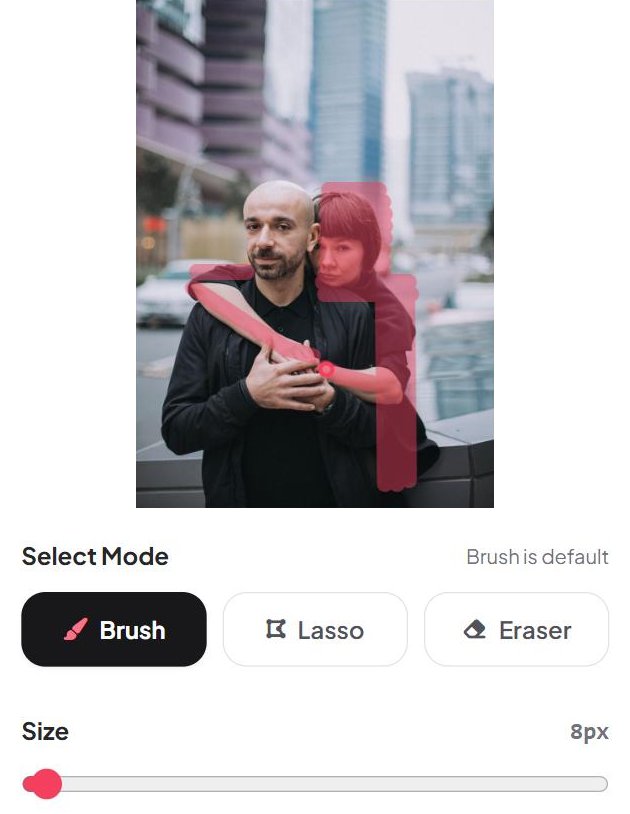
- Stay off the person you want to keep. Where the two touch, stop just outside the person you keep. Drag the Size slider to make the brush smaller around shoulders and hair. Brushed too far? Switch to Eraser and wipe the extra pink off.
- Check the whole picture. Drag the before/after slider and look at faces, hands, edges, and the rest of the photo.
Not right yet? Erase again

- To remove someone else, click Back to Editing and brush on the new result.
- If the result isn't right, click Previous Result to go back, brush the same area again, and click Erase.
- Previous Result and Next Result switch between the versions you made. Download saves the one on screen.
Even today's best AI image models can need two or three erases on complex photos like these. When people overlap, the AI has to rebuild the part that was hidden, and each erase is a fresh attempt, so the next try is often better.
Examples
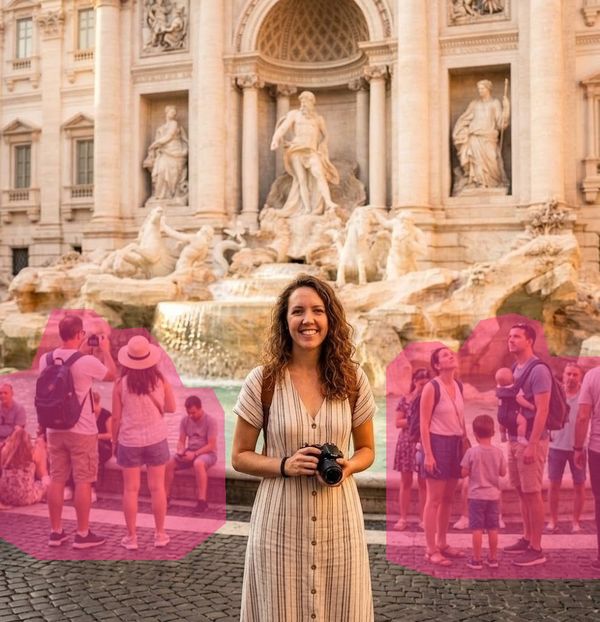
Tourists behind you at a busy sight
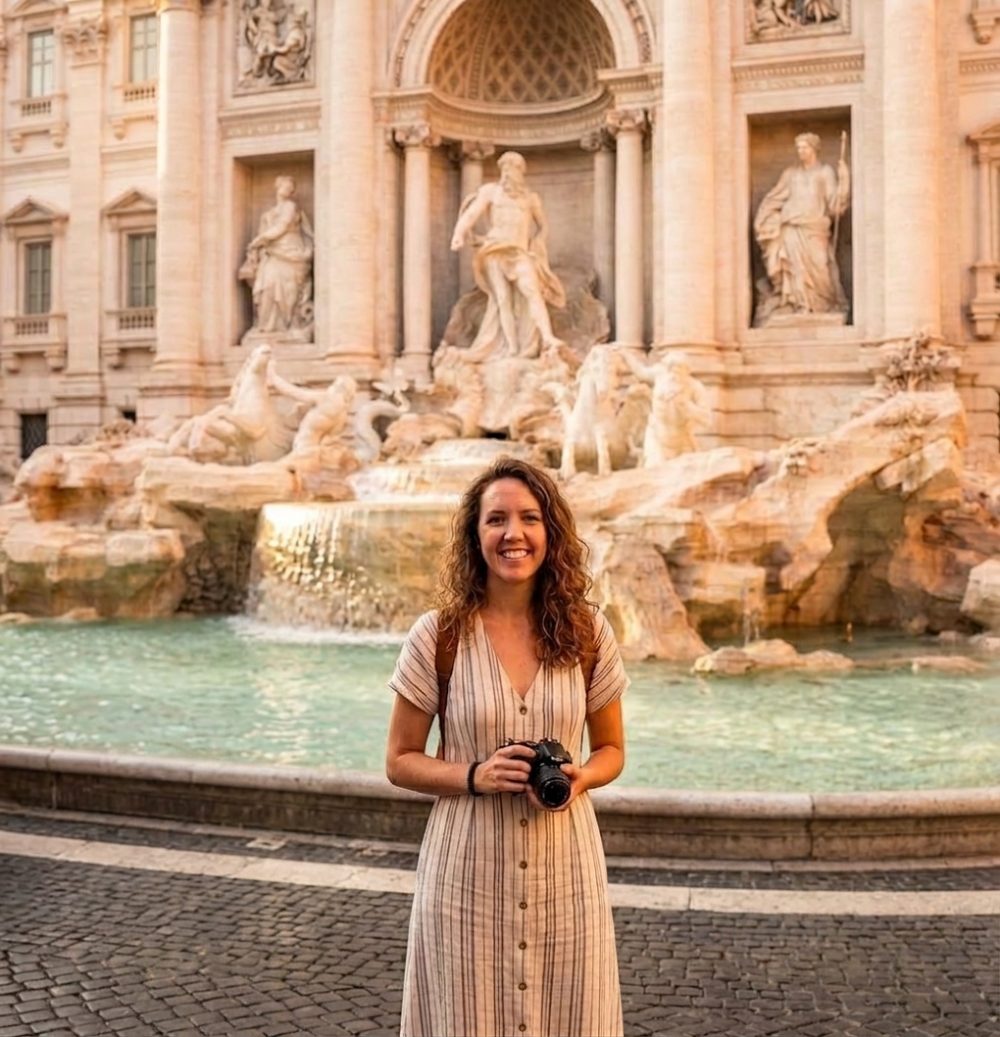
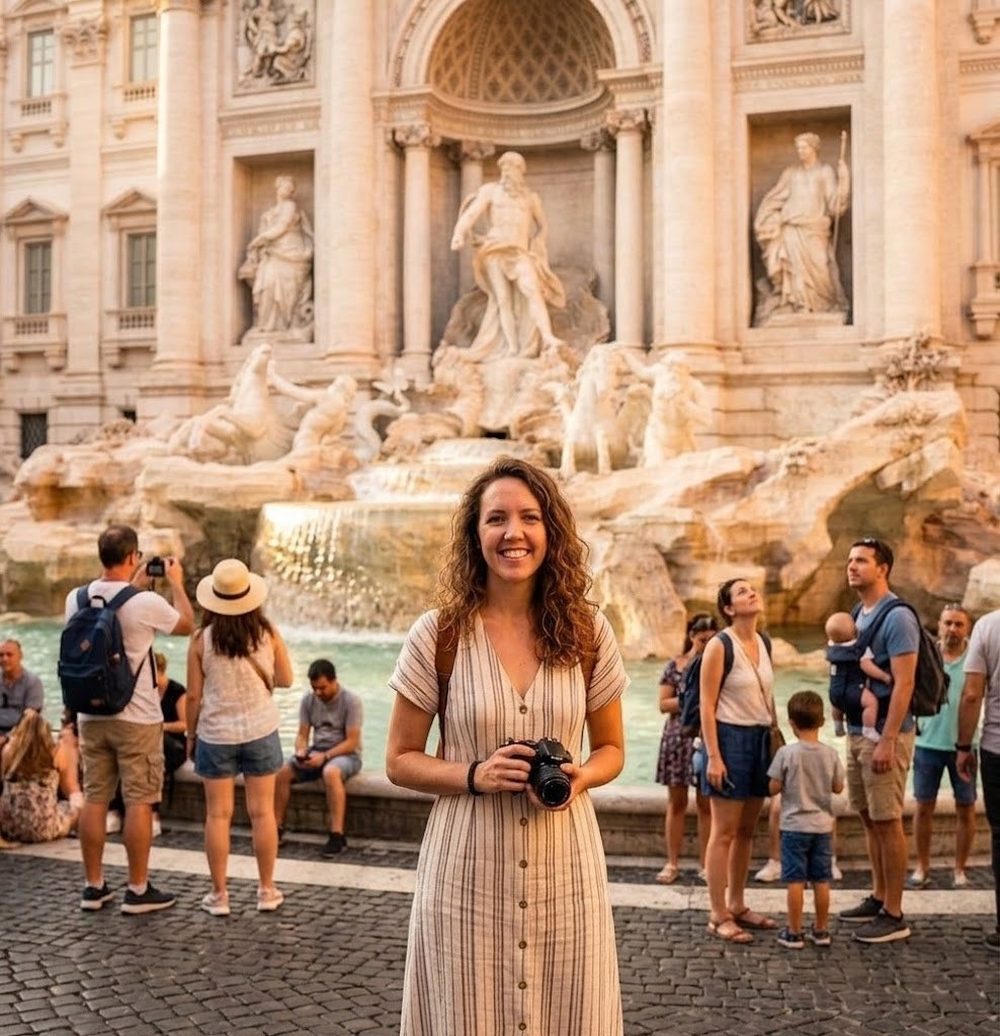
We brushed every tourist on both sides in one go and left a small gap around her arms. One erase cleared the whole background.
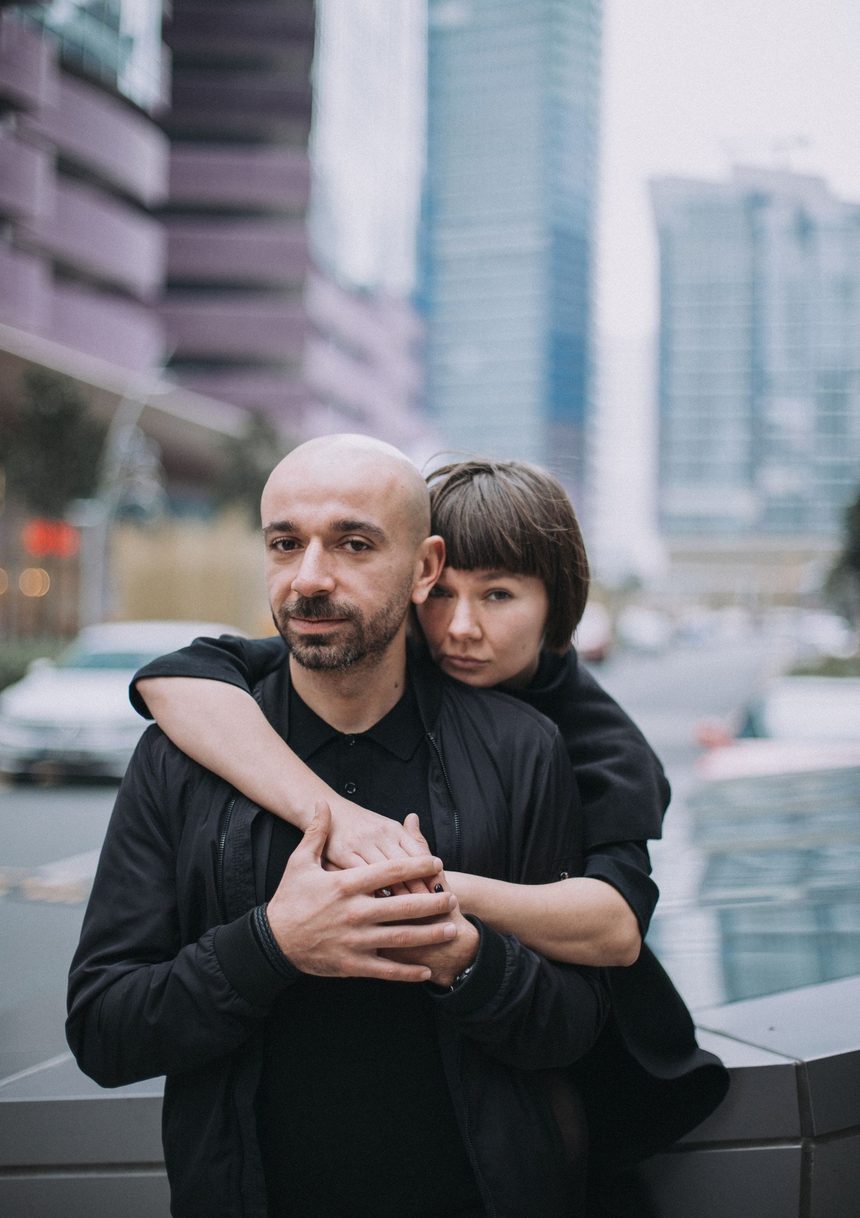
Someone hugging from behind
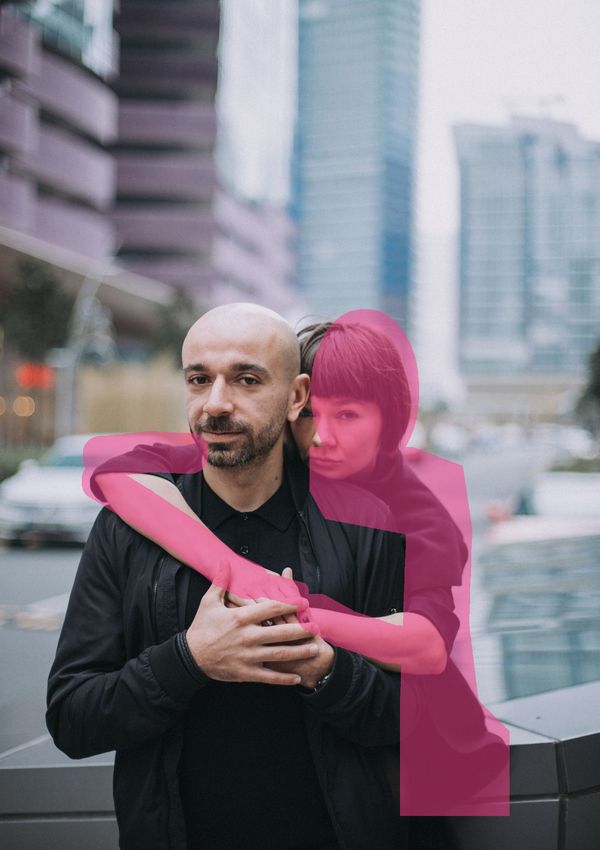
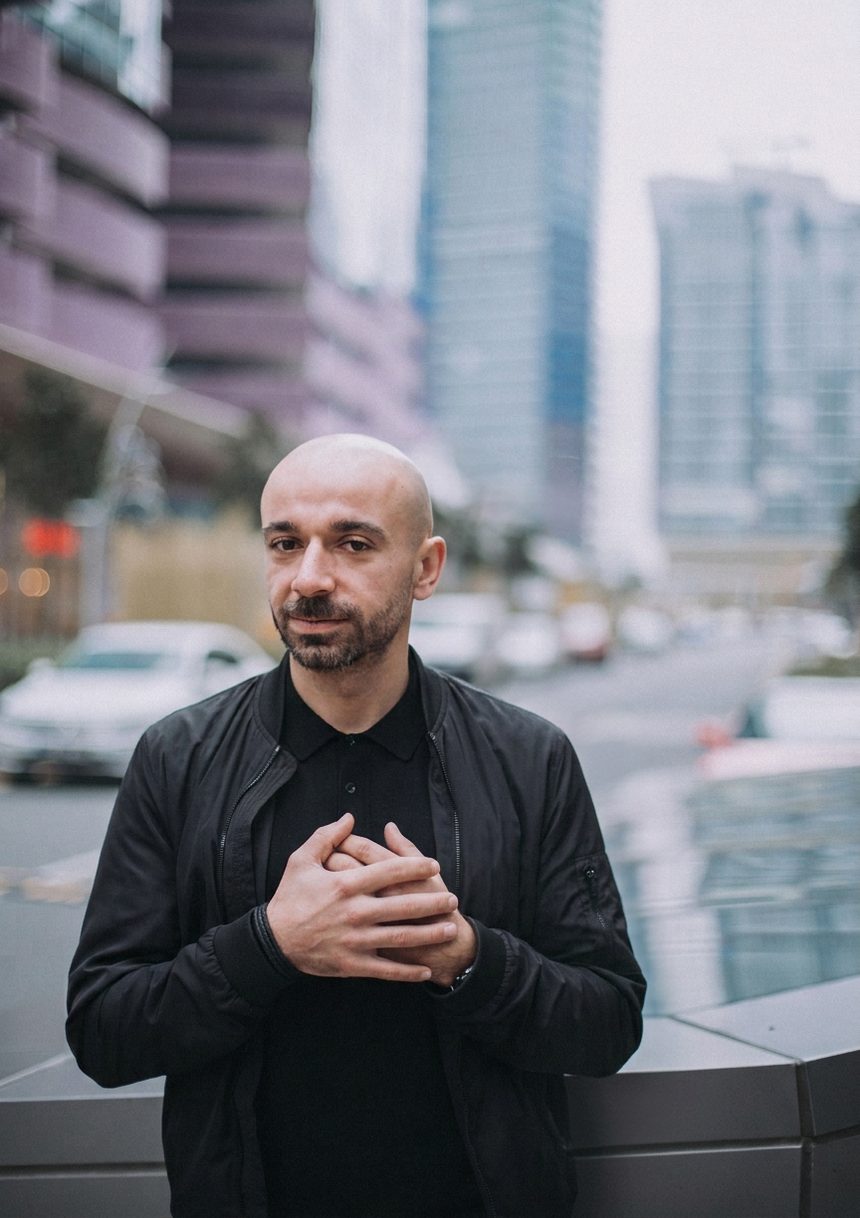
Her arms wrap around him and her fingers rest on his hands, so we brushed her head, her body, both arms and her fingers, with a little margin. The first result wasn't right, so we did a second erase:
- Clicked Previous Result to go back to the original photo.
- Made the brush smaller with the Size slider and brushed her again, including the fingers on his hands. Anything brushed by mistake can be wiped off with Eraser.
- Clicked Erase. This time she was gone and his hands stayed in the photo.
FAQ
Is it free?
Yes, you can try it free without signing up.
Does it work on my phone?
Yes. SimpleEraser works in your phone's browser, so you can brush and erase on a phone, tablet or computer.
Can it remove someone who is touching the person I keep?
Yes. Brush the whole person, including the hand or arm on the other person, and stay just outside the person you keep. The hug example above took two erases.
Does a failed try count?
No. If an erase fails or makes no visible change, it doesn't count.
Ready to try it on your photo?
Remove people from your photo