
Remove Text from Photos
Brush over words, signs, labels, or date stamps and let AI rebuild the surface underneath. Everything outside your selection stays untouched.


Upload a photo to remove text
JPG, PNG, WEBP, or HEIC
Cover each letter completely, including any outline or shadow, and brush a little past the edges.
How to Remove Text from Photos
Upload your photo
Choose a JPG, PNG, WEBP, or iPhone HEIC photo that has text you want gone, or paste an image straight from your clipboard.
Brush over the text
Paint across the words with the brush, or circle a whole label with the lasso. Cover every letter and go slightly past the edges.
Erase, compare, and download
AI repaints the surface where the text was. Drag the slider to check the result, then download it at your photo's original size.
Remove Text from Images & Pictures Without Damaging the Background
When you erase a few words, the rest of your photo should stay exactly as you took it. SimpleEraser changes only the area you brush, so faces, colors, and fine detail everywhere else are left alone.
- Outside your selection nothing is redrawn. Apart from a soft blending edge a few pixels wide, the rest of the image stays as it was.
- The surface is rebuilt, not cut out. Signs, paper, walls, and packaging keep their shape, and only the letters are painted over.
- Full-size download. Your result keeps your photo's original resolution.
Text Removal by Surface
How clean the result looks depends mostly on what the text sits on. These are the surfaces SimpleEraser handles best.
Text on Flat, Plain Surfaces
Menus, paper notices, painted walls, and plain boards. The area under the words is an even color, so the AI only has to continue that surface, including its lighting and slight paper grain.

Text on Curved or Angled Objects
Mugs, bottles, and signs photographed at an angle. The rebuilt surface follows the curve and perspective of the object, which makes it handy for turning a personalized product photo back into a blank one.

Text on Stone, Wood, and Other Textures
Carved lettering on stone, painted words on wood, and printed text on fabric. Natural grain and veining are continued across the erased area, so the patch blends into the surrounding texture.
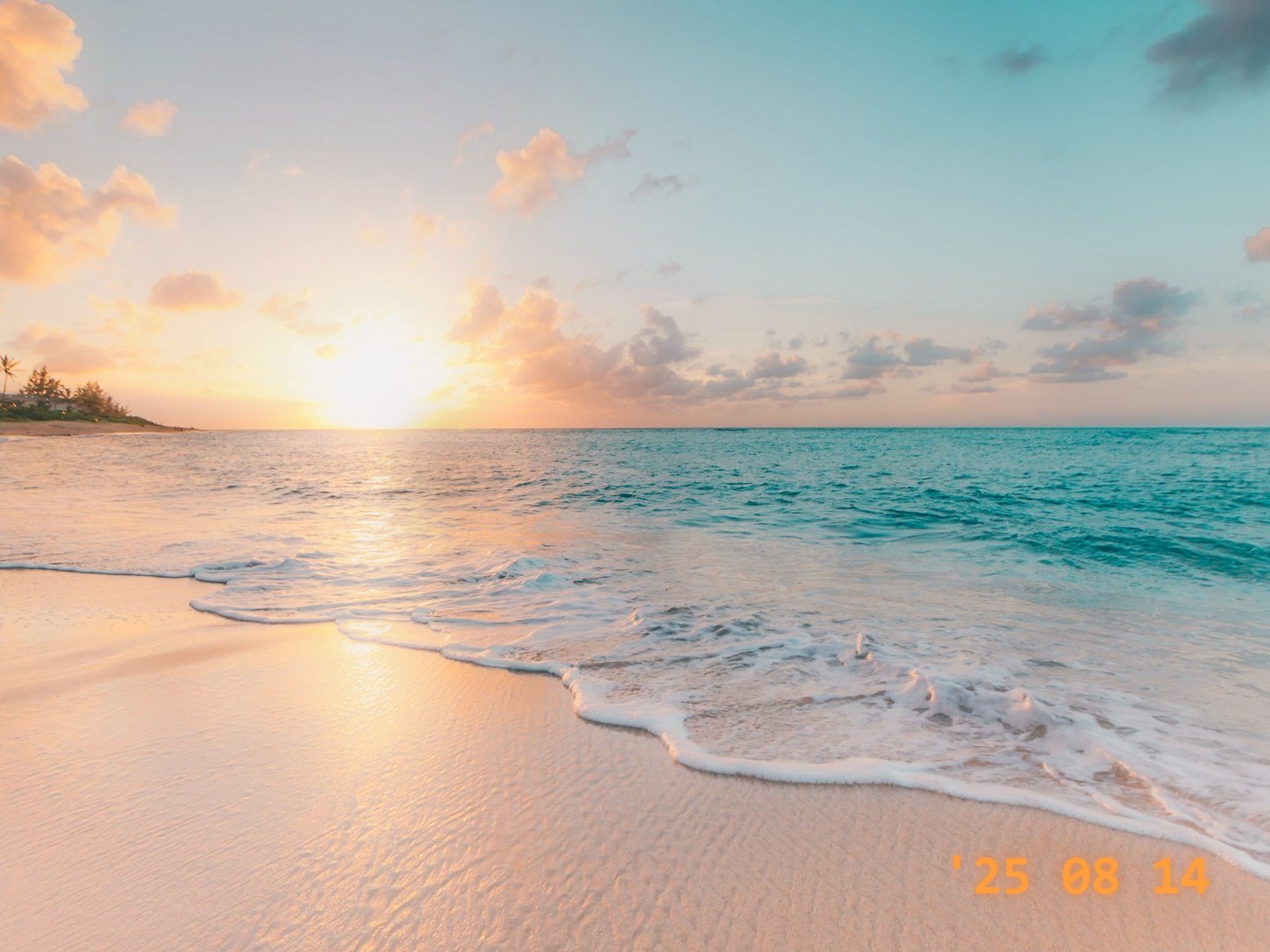
Date Stamps & Small Captions
The orange timestamp burned into old camera photos, small labels, and short captions near an edge. Brush the digits a little wider than they appear, since their glow often spreads past the numbers.
Free AI Text Remover
SimpleEraser is a free online text remover with no account and no watermark on the result. Upload an image, brush over the words, and download a clean copy. Each visitor gets a limited number of free edits per day.
It works as a text remover for images of every kind: product shots, travel photos, scanned pages, and graphics. Because it is an AI text remover rather than a simple blur or clone tool, it repaints the surface under each letter instead of smearing the pixels around it.
Erase Multiple Text Areas at Once
You don't have to clean a photo one word at a time. Here is how selecting several spots works.
Select every spot in one go
Brush all the words you want gone, even if they sit far apart, then click Erase once. Most of the time every spot is cleaned in a single pass.
Missed one? Touch up just that spot
Now and then, when the text is small and the spots are far apart, the AI leaves one untouched. Brush only what is left and erase again. Your earlier result is kept.
One click on Erase = one free edit
Each click counts as one of your free daily edits, whether it covers one word or ten. Selecting everything together is the most economical way to work.
Tips & Limitations
Tips for Better Results
- •Cover letters completely: Include outlines, drop shadows, and glow around the text. A thin leftover edge is what usually gives an edit away.
- •Leave a little margin: Some clean surface around each word gives the AI more to copy from, so the patch blends in better.
- •Go over faint traces again: If a ghost of a letter remains, brush just that spot and erase once more. Each pass builds on your latest result.
Known Limitations
- •Text over faces or your main subject: The AI has to guess what is hidden under the letters, and a rebuilt face or product detail may not match the original.
- •Busy patterns and dense paragraphs: Text on detailed prints, or long blocks of small type, can leave smudges that look edited.
- •Very small or handwritten text: The AI sometimes leaves tiny notes untouched. You will see a message when that happens; brushing a wider area and trying again often helps.
- •Photos of screens and caption bars: Pictures of monitors, and meme captions on a solid bar, often look processed. Cropping the bar off is usually cleaner.
Frequently Asked Questions
Ready to Remove Text from Your Photo?
Upload a picture with a sign, label, caption, or date stamp and get a clean copy at full size.
Upload Image Now